API Quickstart Guide
Welcome to the Redbelt API! This guide will help you get started in just a few minutes. By the end of this guide, you’ll have:
- Created your API key
- Set up your development environment
- Made your first API call to retrieve available LLMs
Prerequisites
Section titled “Prerequisites”Before you begin, make sure you have:
- A Redbelt account at redbelt.ai (contact sales@redbelt.ai for invites)
- Python 3.8+
1. Get Your API Key
Section titled “1. Get Your API Key”-
Log in to Redbelt and Go to the Dashboard
Navigate to redbelt.ai and log in to your account. Click the Dashboard button in the left side menu.

-
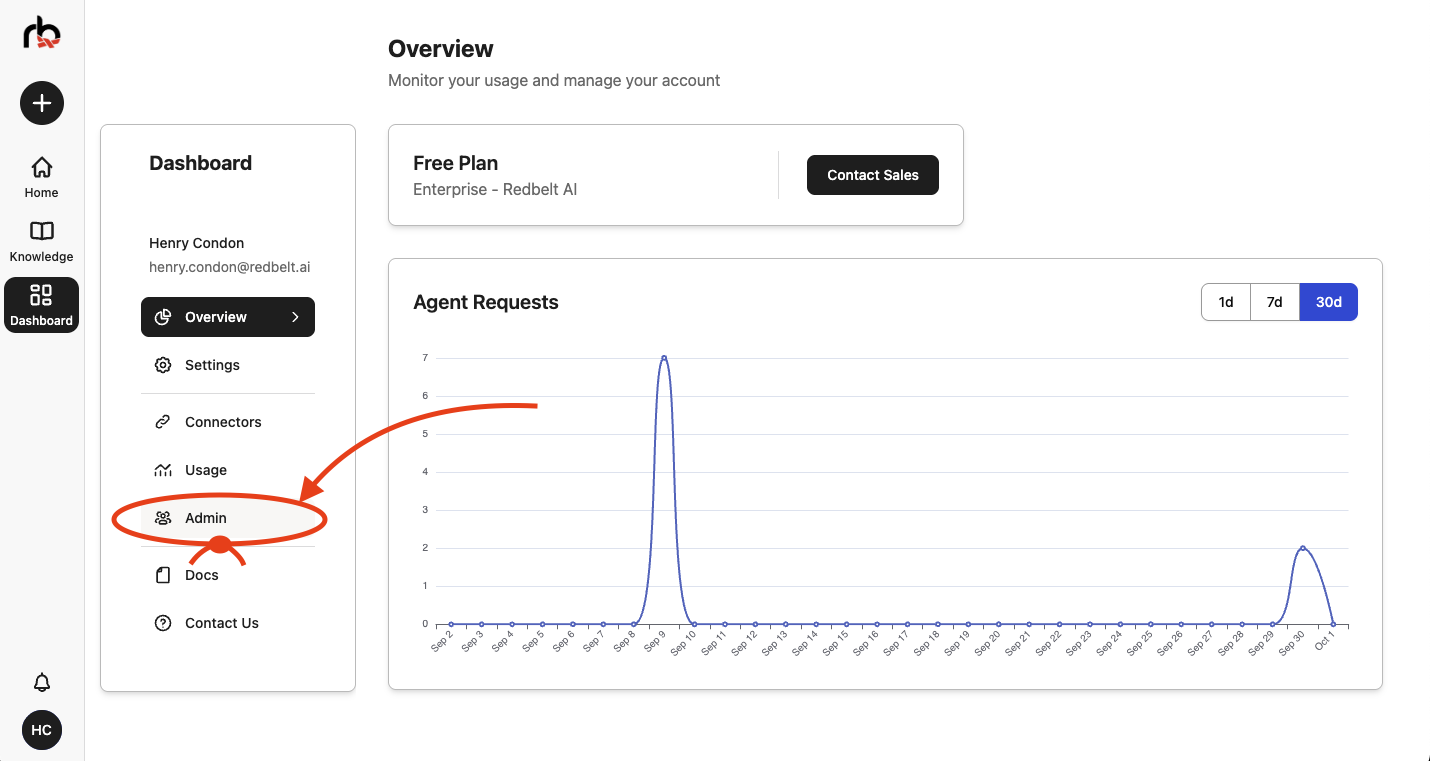
Access Admin Page
From the left side menu, click on Admin to access the administration panel.
-
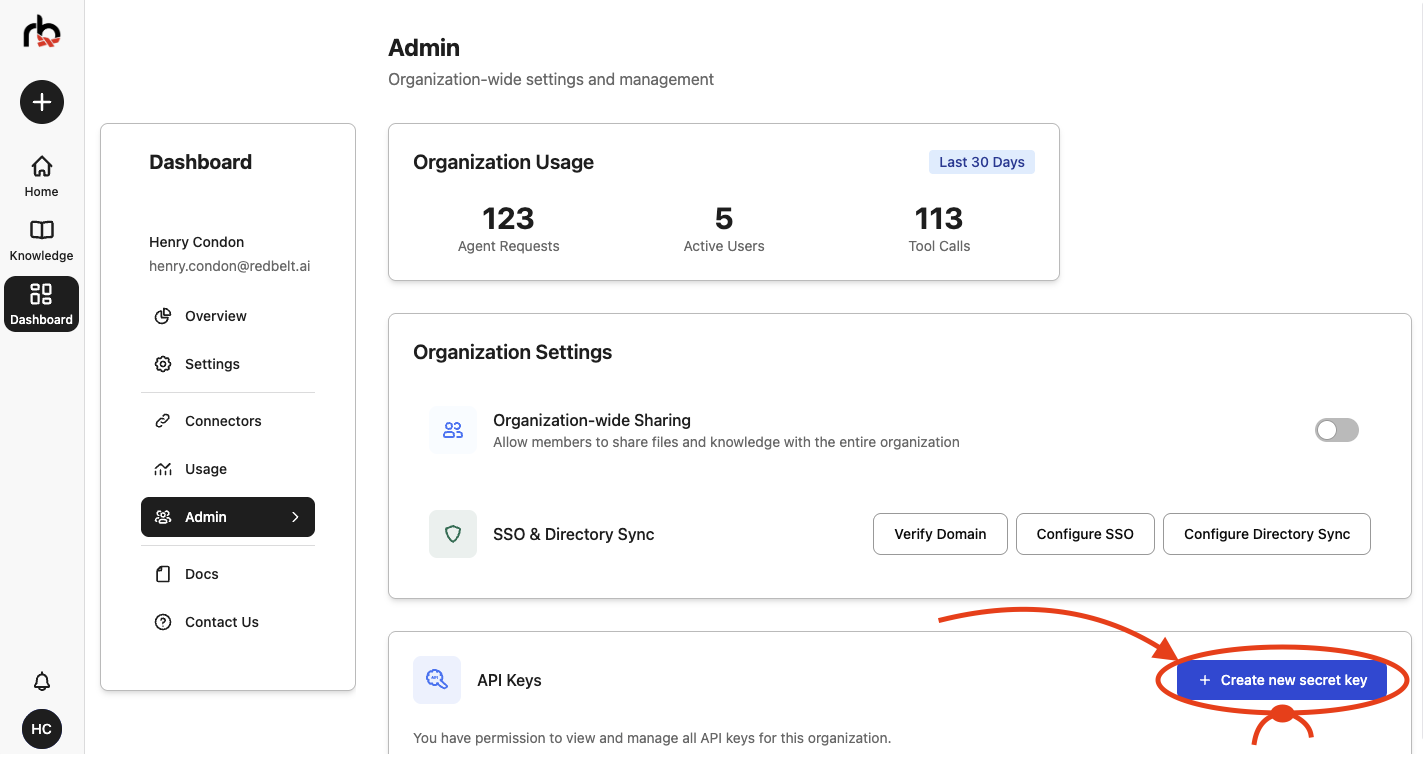
Create New Secret Key
Click the Create a new secret key button to open the API key creation modal.
-
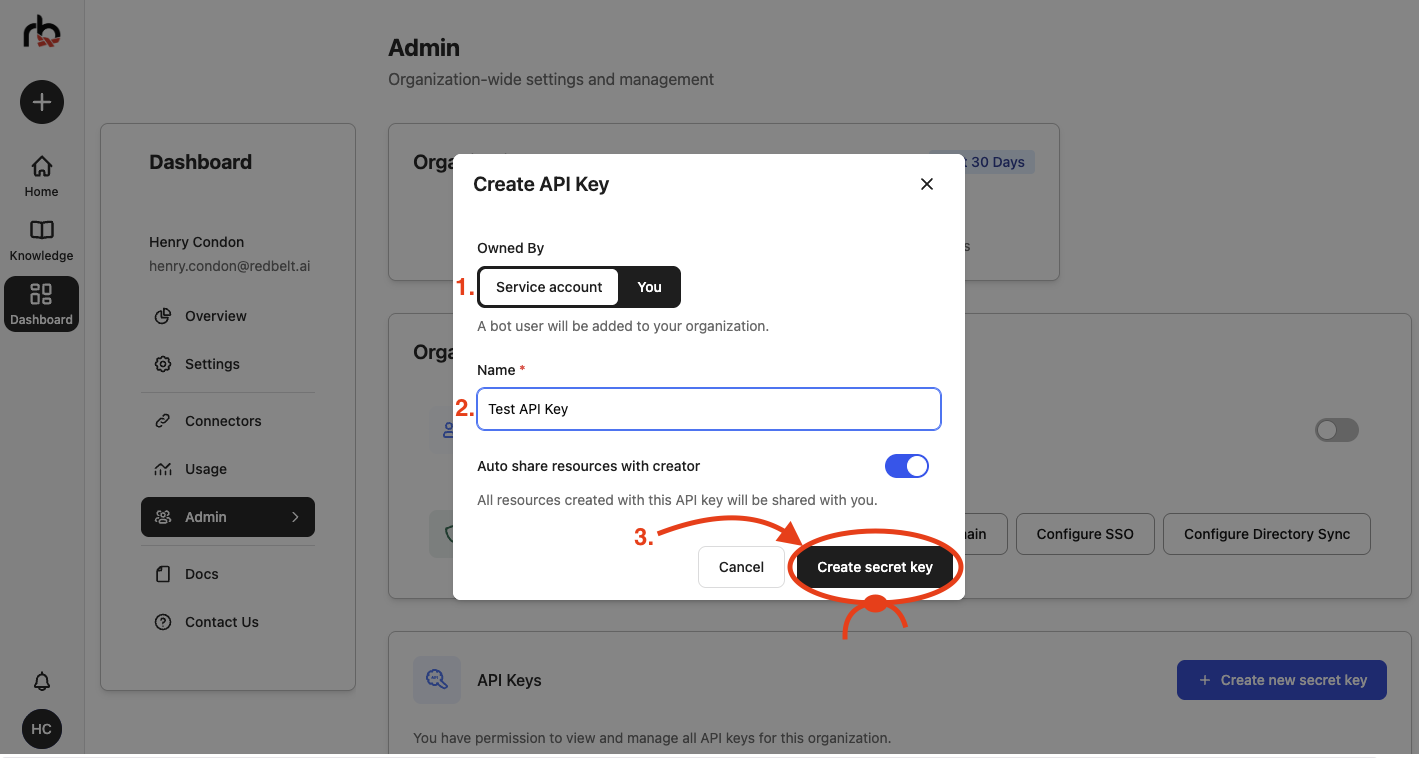
Configure Your API Key
In the modal that appears:
- Choose who the key is owned by: Service Account (a bot user) or You (a user)
- Enter a descriptive name for your key (e.g., “Development Key” or “Production Key”)
- Click the Create secret key button
-
⚠️ Important: Copy and Save Your New Key
Once created, click the Copy button to copy your API key. Save your API key immediately! For security reasons, you won’t be able to see it again.
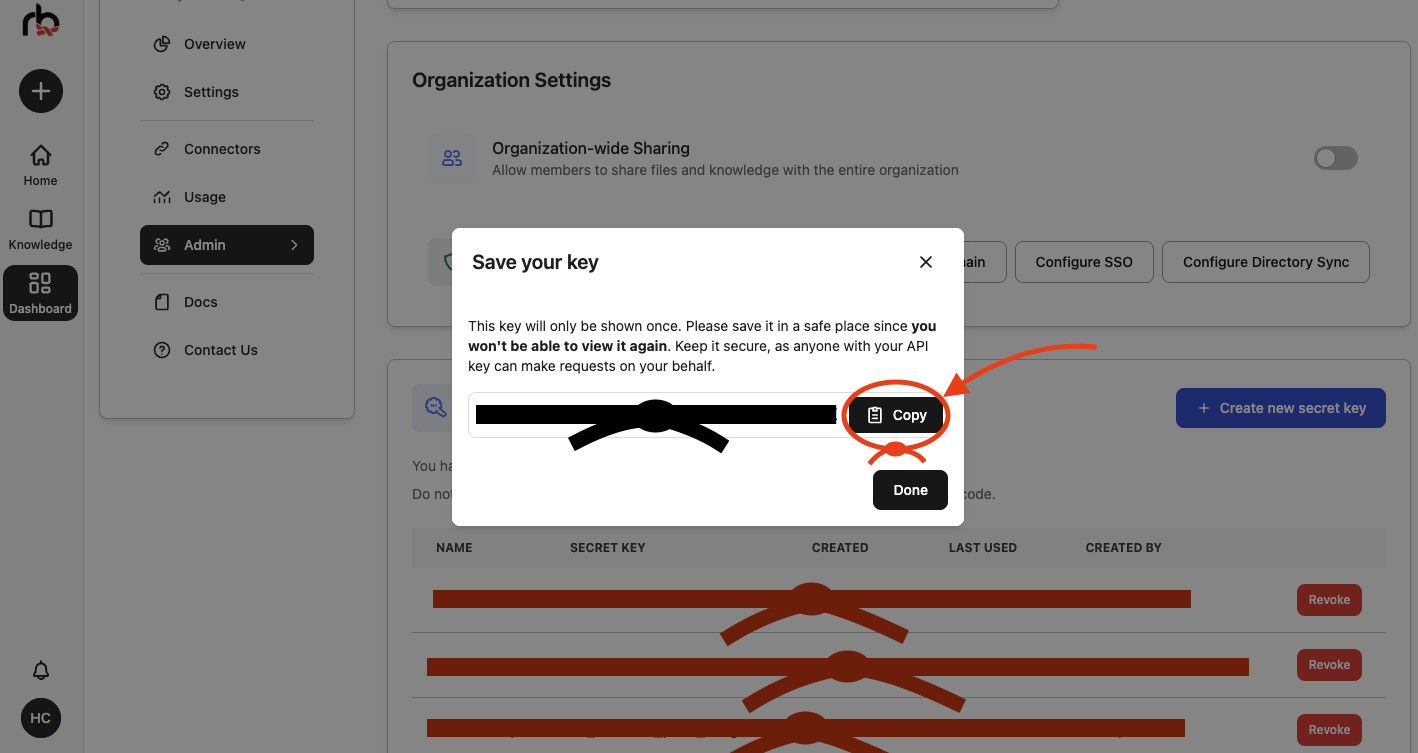
After your new key is saved, click Done.
2. Set Up Your Environment
Section titled “2. Set Up Your Environment”Create a new directory for your project and set up your Python environment.
uv init redbelt-quickstartcd redbelt-quickstartuv add requests python-dotenvCreate a .env file to store your API key securely:
echo "REDBELT_API_KEY=your-api-key-here" > .envReplace your-api-key-here with the API key you generated in step 1.
3. Create Your First API Client
Section titled “3. Create Your First API Client”Create a new file called quickstart.py with the following code:
import osimport requestsfrom dotenv import load_dotenv
load_dotenv()
api_url = "https://redbelt.ai/api"session = requests.Session()session.headers.update({    "Authorization": f"Bearer {os.getenv('REDBELT_API_KEY')}",    "Content-Type": "application/json"})
response = session.get(f"{api_url}/threads/llms")print(response.json())
This code does the following:
- Loads your API key from the
.envfile usingpython-dotenv - Creates a session with proper authentication headers
- Makes a GET request to the
/threads/llmsendpoint to retrieve available LLMs - Prints the response showing all available language models
4. Run Your First API Call
Section titled “4. Run Your First API Call”Execute your script:
uv run quickstart.pyYou should see a JSON response listing all available LLMs:
{ "message": "LLMs retrieved successfully.", "status_code": 200, "timestamp": "2025-10-01T08:10:49.447930+00:00", "data": [ { "llm_id": 19, "llm_type_id": 1, "name": "GPT 5", "deployment_name": "gpt-5", "slug": "gpt-5", "is_active": true, "is_frontend_visible": true, "cost_per_1k_input_token_usd": 0.00125, "cost_per_1k_output_token_usd": 0.01, "max_input_tokens": 400000, "max_output_tokens": 128000, "is_thinking_model": true }, { "llm_id": 22, "llm_type_id": 1, "name": "GPT 5 Fast", "deployment_name": "gpt-5", "slug": "gpt-5-fast", "is_active": true, "is_frontend_visible": true, "cost_per_1k_input_token_usd": 0.00125, "cost_per_1k_output_token_usd": 0.01, "max_input_tokens": 400000, "max_output_tokens": 128000, "is_thinking_model": false }, { "llm_id": 7, "llm_type_id": 2, "name": "Gemini 2.5 Pro", "deployment_name": "gemini-2.5-pro", "slug": "gemini-2.5-pro", "is_active": true, "is_frontend_visible": true, "cost_per_1k_input_token_usd": 0.00125, "cost_per_1k_output_token_usd": 0.01, "max_input_tokens": 1048576, "max_output_tokens": 65536, "is_thinking_model": true }, and so on...🎉 Success!
You’ve successfully:
- ✅ Generated your API key
- ✅ Made your first API call
- ✅ Retrieved available LLMs
Need Help?
Section titled “Need Help?”- 📖 Check out our Full API Reference
- 📧 Contact support@redbelt.ai